
Appearance
Project Creation Process
Project creation is a required first step as teams and workstreams onboard to the JFrog Platform. This process involves platform administrators and is currently managed via ServiceNow.
Admin Security Group
You’ll need a Security Group to designate project administrators:
- If you already have a Security Group representing your future JFrog project admins, you can use that group.
- If you do not have a Security Group, visit iam.ford.com and under
Security Groups, click onCreate a new SGto get a new Security Group created.
Request Project Creation
Request a JFrog Artifactory Project by submitting a ticket via Service Now Support. Fill out the fields as described in the image and text below and click on Submit.
- Tips: start type in "jfrog" to populate the Jfrog Application of your issue
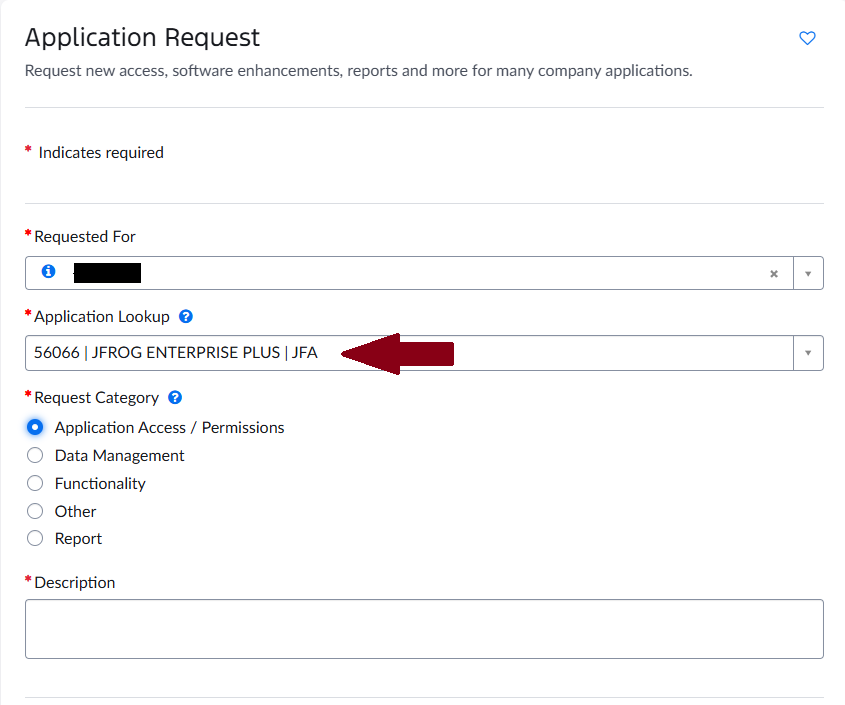 Please add the following to the ticket description:
- Project Name: Should be descriptive and human-readable (e.g., Dev Tools & Enablement).
- Project Description: Clearly state your project’s purpose.
- Project Key: This is a prefix for resources within your project.
- Requirements: 2–32 lowercase alphanumeric characters, must begin with a letter (e.g., dtande).
- Admin Security Group: The Security Group containing the CDSIDs of those responsible for access, roles, and repository management.
Logging In
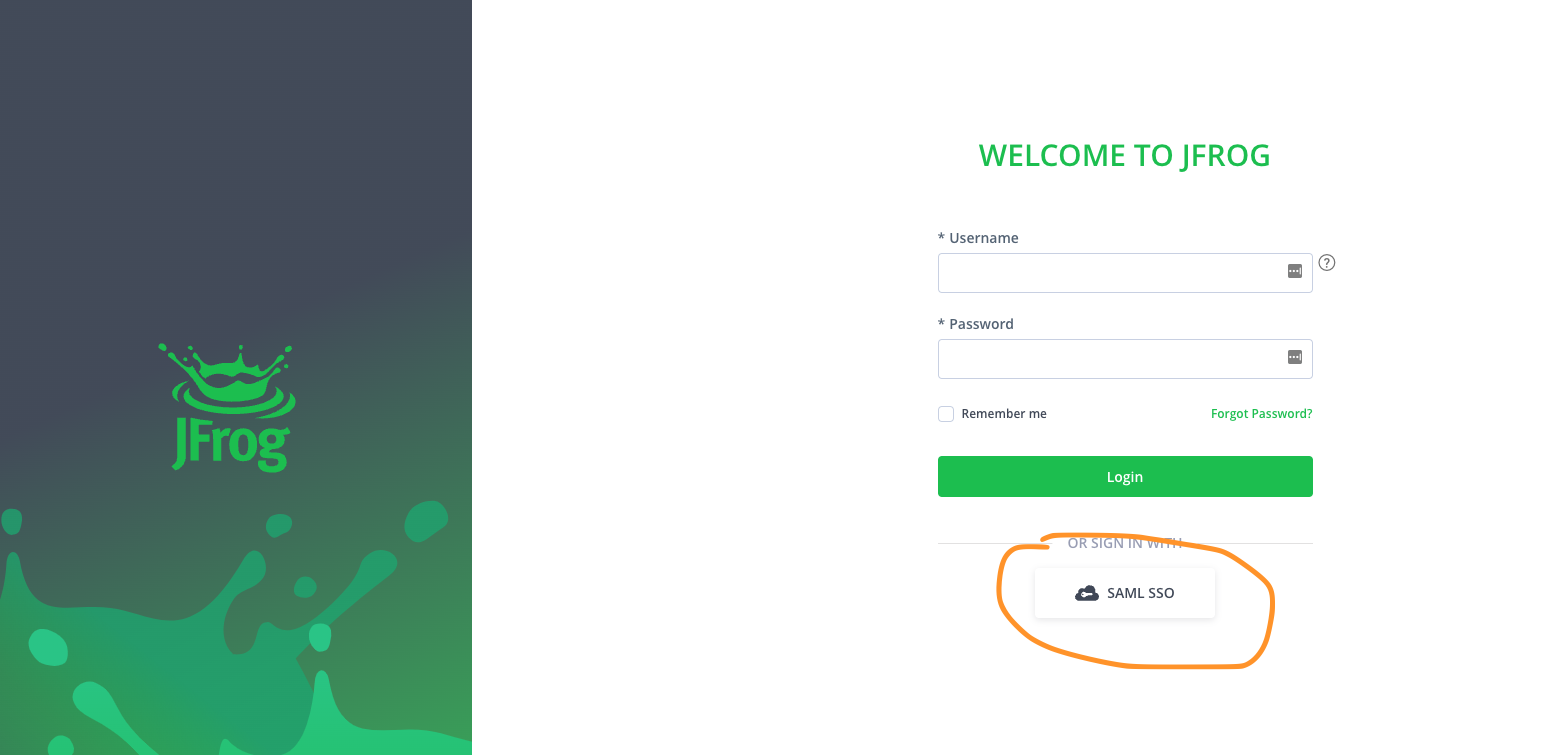
Once your project request is processed, log in to JFrog at https://jfrog.ford.com and click the SAML SSO button at the bottom of the login screen.
Project Administration View
After logging in:
- Select your project from the drop-down menu at the top left of the page.
- Once selected, the Administration option will be available in the menu, enabling you to manage your project’s settings and resources.