
Appearance
Customize Repositories Permissions
Summary
Project roles are managed by the Project Admin and consist of a combination of predefined global roles and customized project roles. This dual-layer approach allows for granular access control within each project. When setting up a new project, the Project Admin can modify actions within global roles and create new project-specific roles as needed. For more details, see Jfrog Custom Global Roles
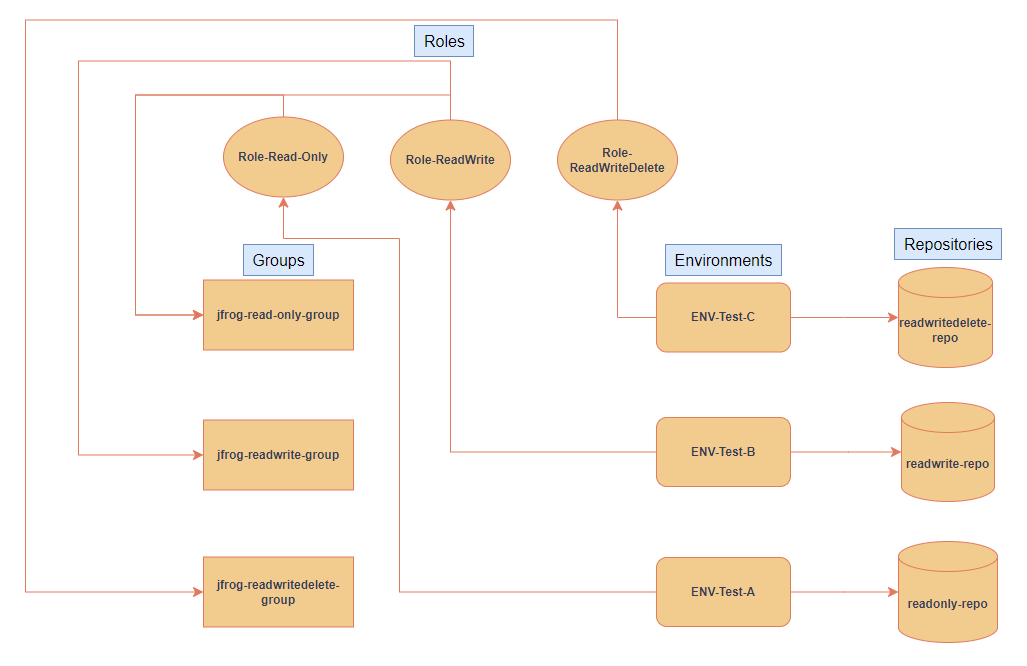
Below is the flowchart and steps for how to customize your repositories' permissions. Note: Example below shows how to create two different repositories: one with read and another with read/write permission.
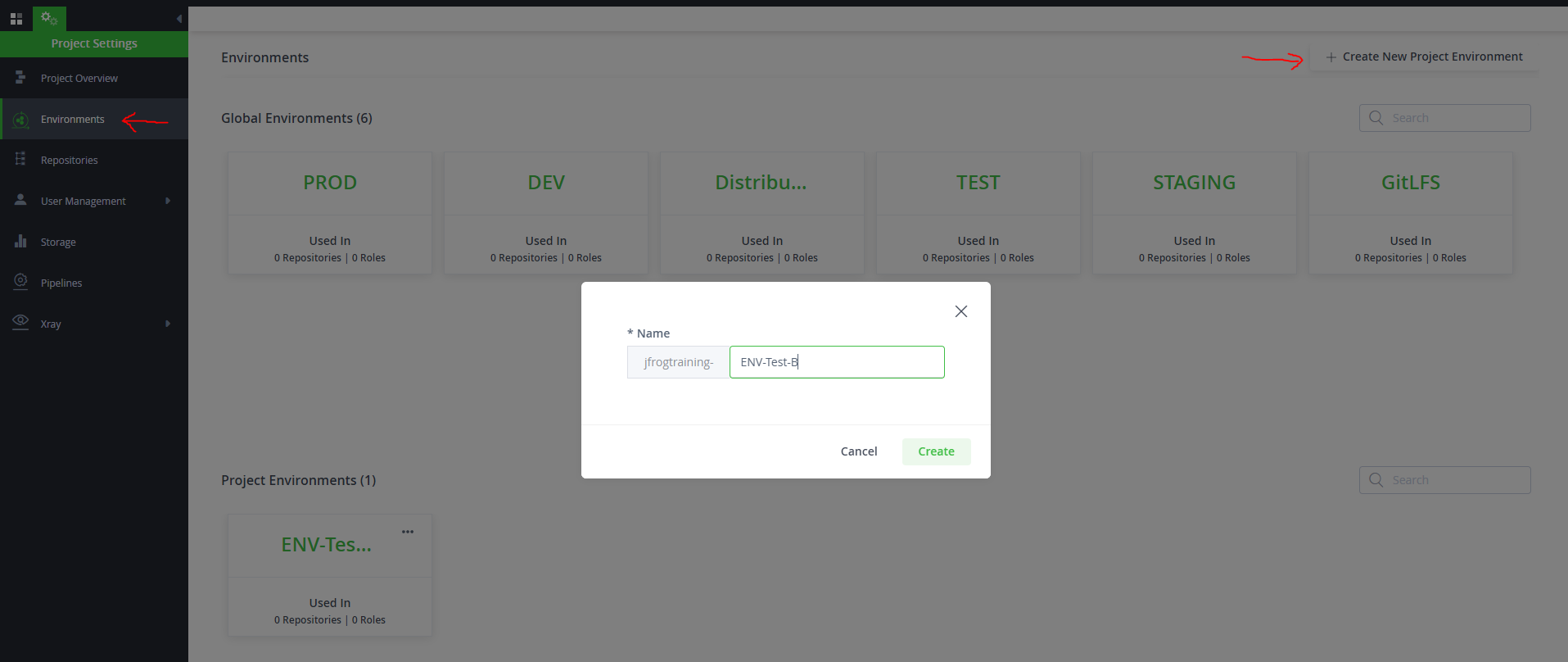
- Create project level environment:
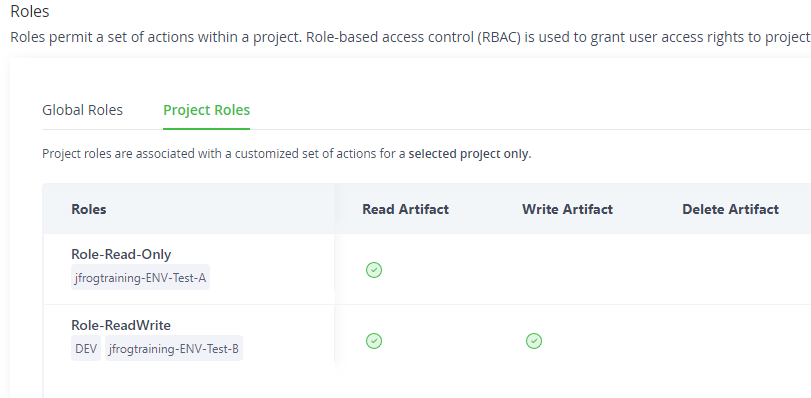
- Create project level role:
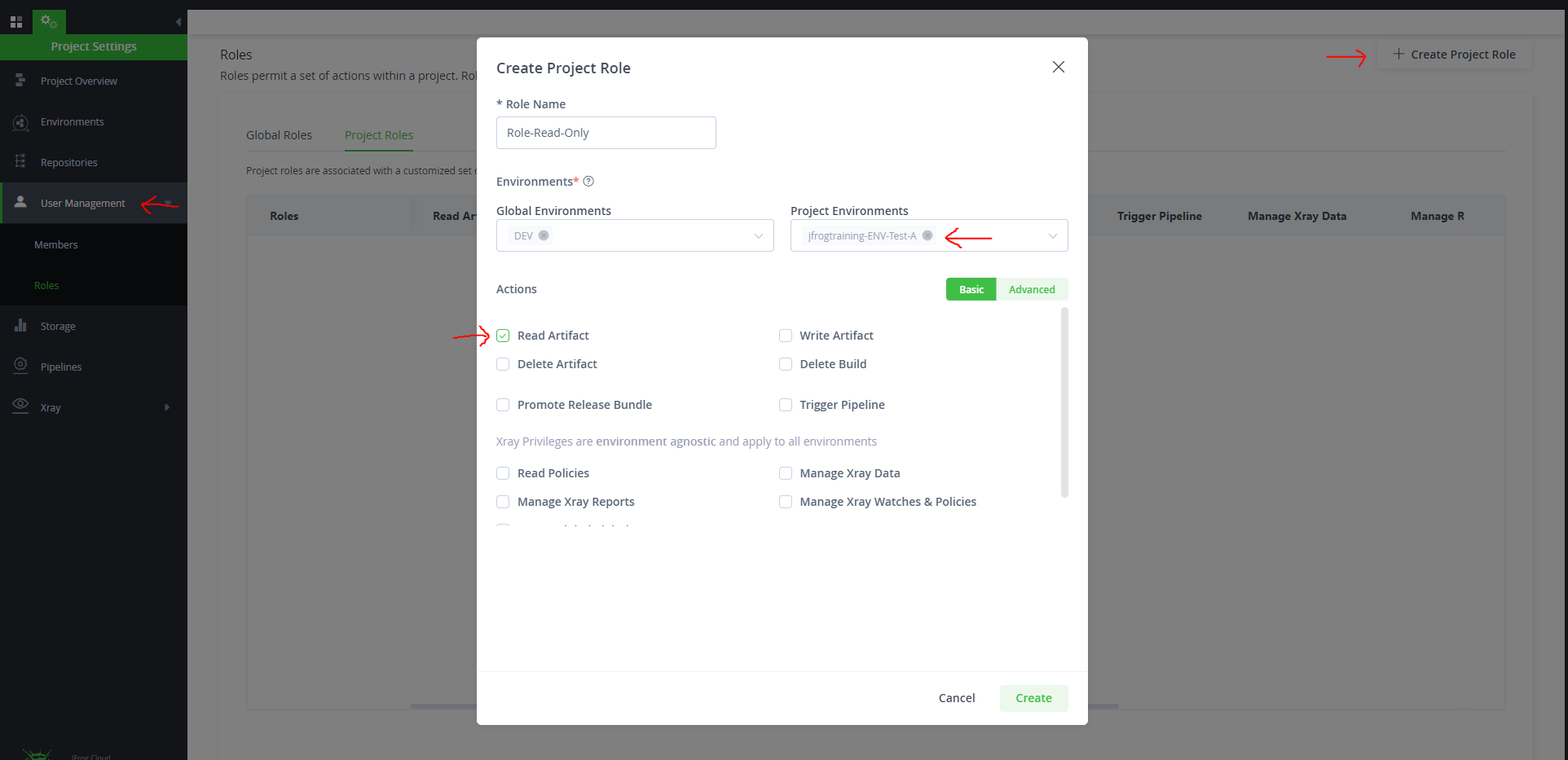
- Attach project environment to role:
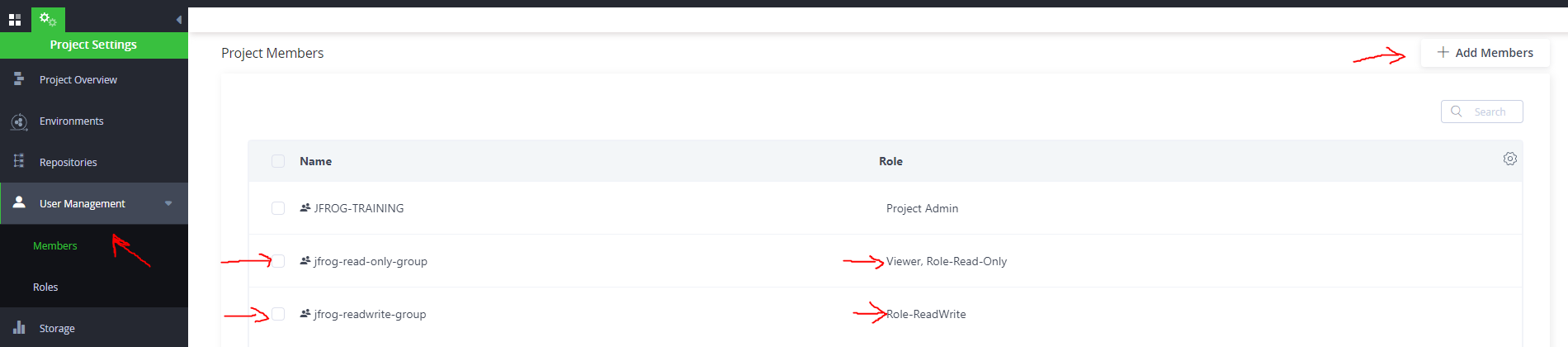
- Assign role to group:
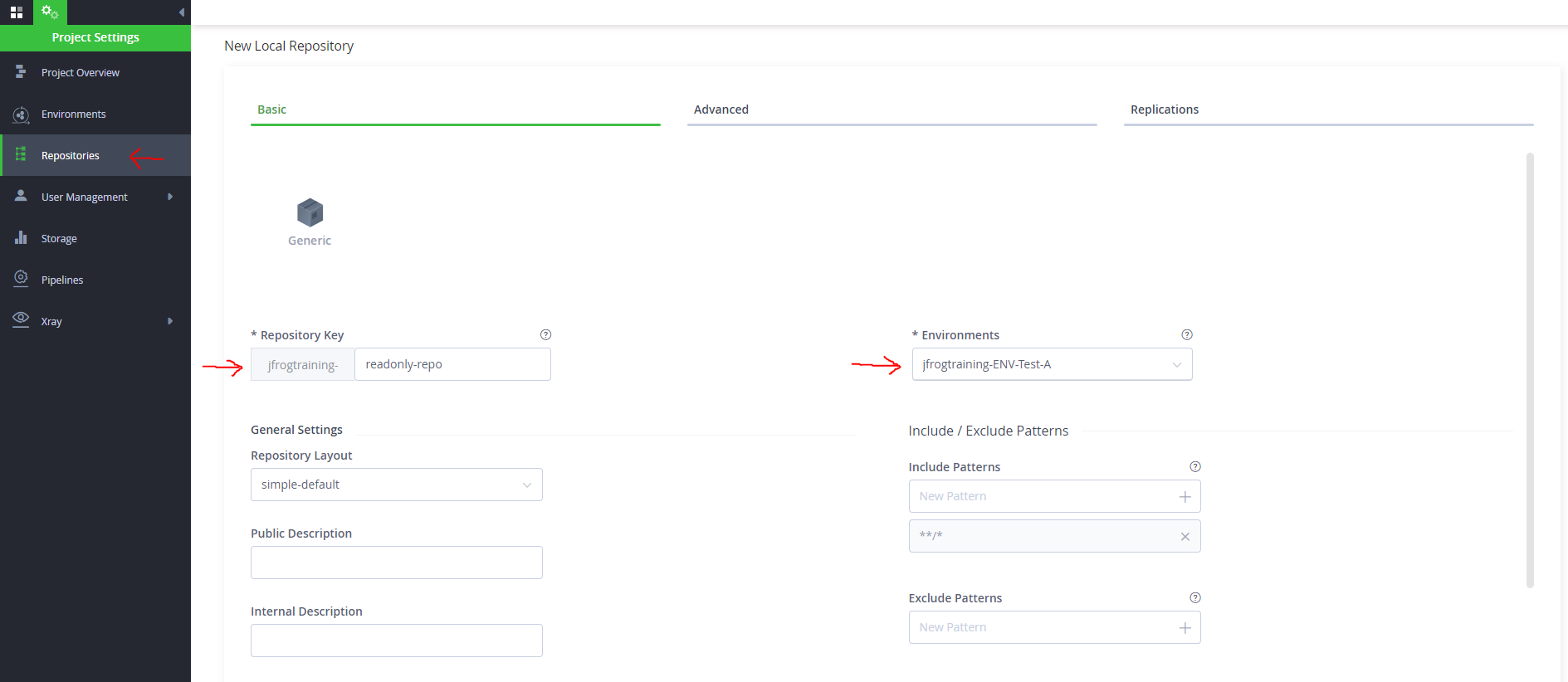
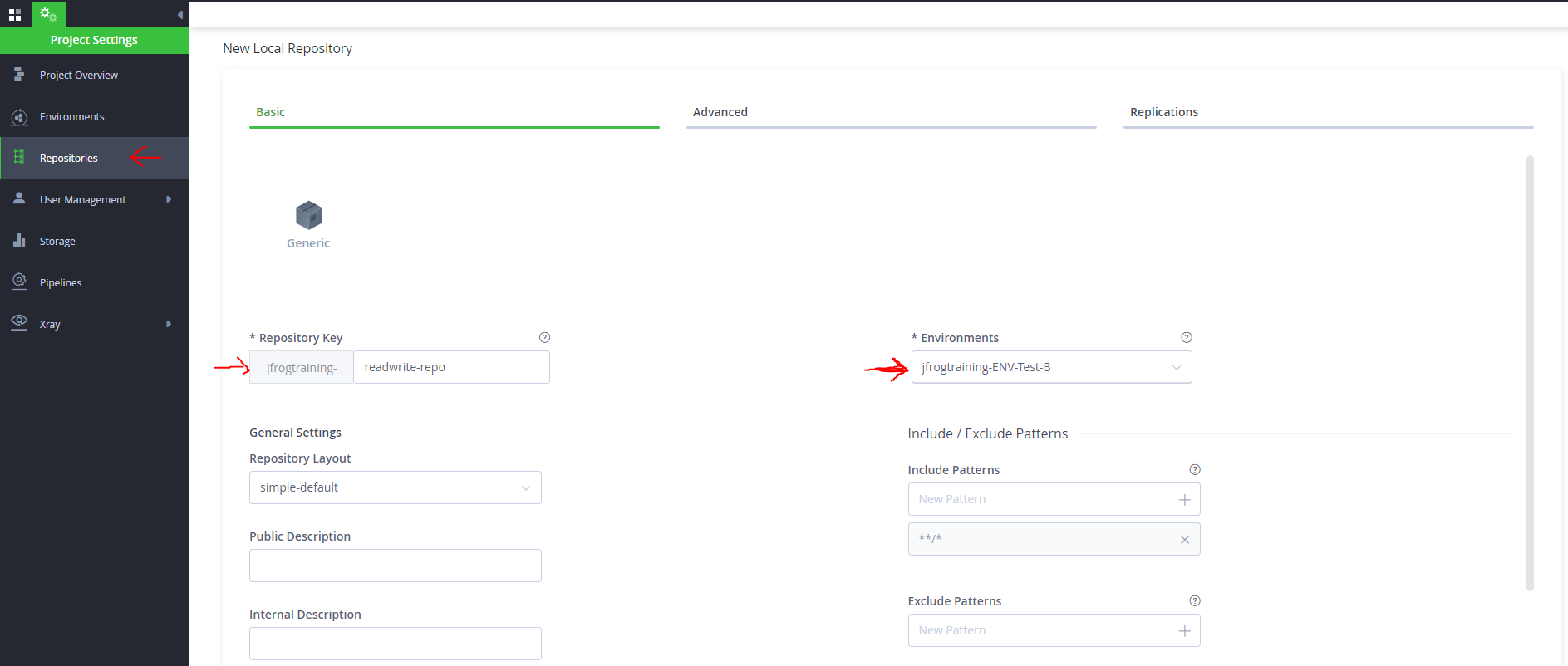
- Create repositories with a customized environment:
- Repositories permission result: