
Appearance
Local Environment Configuration
- Global Environment Variables
- Gradle Configuration
- NPM Configuration
- Conan Configuration
- PyPI Configuration
- Go Configuration
- Git LFS Configuration
- Other Package Managers
- Upload Packages Via UI
JFrog requires authentication to resolve and upload artifacts. The recommended approach is to set your credentials as system environment variables and reference them in your configuration files.
1. Global Environment Variables Setup
First, set up your Artifactory credentials as environment variables. This allows various tools to authenticate securely without hardcoding credentials.
Windows
- Open Environment Variables settings.
- Add the following variables under System variables:
ARTIFACTORY_USER=<CDSID>@ford.comARTIFACTORY_PASSWORD=<TOKEN>GRADLE_OPTS=-Dgradle.wrapperUser=%ARTIFACTORY_USER% -Dgradle.wrapperPassword=%ARTIFACTORY_PASSWORD%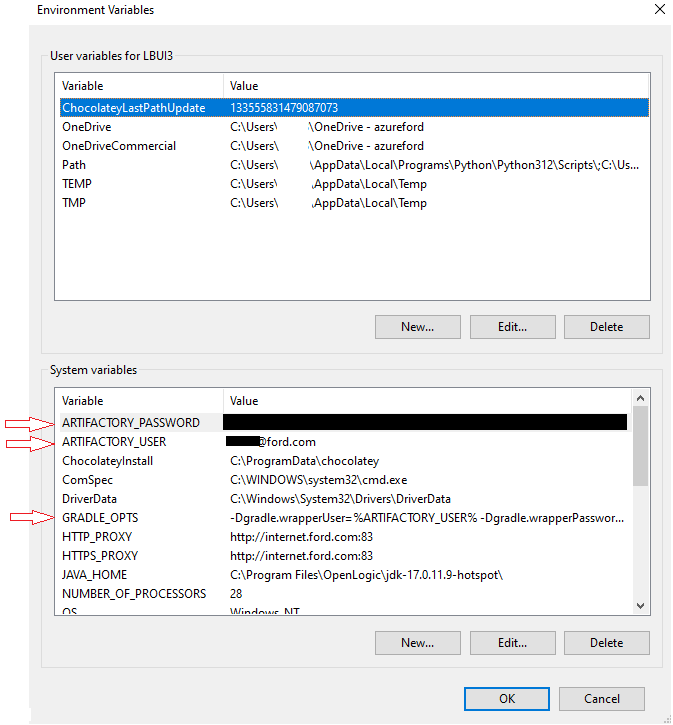
Figure 1a. JFrog ENV VAR (Windows)
macOS / Linux
Add the following to your shell configuration file (e.g., ~/.zshrc or ~/.bash_profile):
bash
export ARTIFACTORY_USER="<CDSID>@ford.com"
export ARTIFACTORY_PASSWORD="<TOKEN>"
Note: Restart your terminal or run
source ~/.zshrcfor changes to take effect.
2. Gradle Configuration
Configure GRADLE_OPTS
Gradle requires GRADLE_OPTS to pass the credentials to the wrapper.
macOS / Linux:
- Add to
~/.zshrc:bashexport GRADLE_OPTS="-Dgradle.wrapperUser=$ARTIFACTORY_USER -Dgradle.wrapperPassword=$ARTIFACTORY_PASSWORD"
IntelliJ IDEA Configuration
If you are using IntelliJ IDEA, configure the VM options to ensure it can download the Gradle wrapper.
- Navigate to Help -> Edit Custom VM Options.
- Add the following lines:properties
-Dgradle.wrapperUser=<CDSID>@ford.com -Dgradle.wrapperPassword=<TOKEN> - Restart the IDE.
Verify Configuration
Run a clean build to verify the setup.
Important: Remove your existing cached dependencies to ensure they are downloaded from JFrog.
- Windows: Delete
C:\Users\<CDSID>\.gradle- macOS/Linux: Delete
~/.gradle
Command:
bash
# Windows
> gradlew clean build

# Unix
> ./gradlew clean build
3. NPM Configuration
For NPM configuration, please refer to the DevEnablement WAME guides:
- Windows: Configuring JFrog Artifactory Environment Variables (Windows)
- macOS: Configuring Authentication for JFrog Artifactory (macOS)
4. Conan Configuration
Configure your Conan client to work with the JFrog repository.
1. Add Remote:
bash
conan remote add conan-io https://jfrog.ford.com/artifactory/api/conan/conan-io2. Login:
bash
conan user -p <TOKEN> -r conan-io <CDSID>@ford.comFor more details, visit Use Conan with Artifactory.
5. PyPI (Python) Configuration
Pip does not support reading credentials from a file by default. You can configure it using pip.conf or environment variables.
Option A: pip.conf
File: ~/.pip/pip.conf (Unix) or %APPDATA%\pip\pip.ini (Windows)
ini
[global]
index-url = https://<CDSID>@ford.com:<TOKEN>@jfrog.ford.com/artifactory/api/pypi/public-pypi-ford/simple
Option B: Environment Variable (PIP_INDEX_URL)
You can set the PIP_INDEX_URL environment variable to avoid storing credentials in files.
Windows:
- Set PIP_INDEX_URL =
https://%ARTIFACTORY_USER%:%ARTIFACTORY_PASSWORD%@jfrog.ford.com/artifactory/api/pypi/public-pypi-ford/simple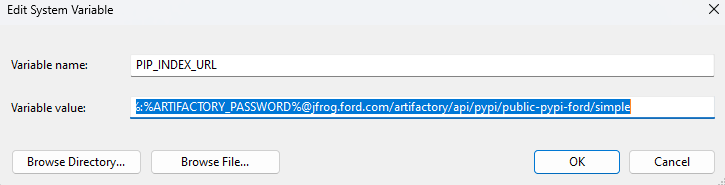
Figure 1b. JFrog PIP VAR (Windows)
macOS / Linux:
- Add to
~/.zshrc:bashexport PIP_INDEX_URL="https://$ARTIFACTORY_USER:$ARTIFACTORY_PASSWORD@jfrog.ford.com/artifactory/api/pypi/public-pypi-ford/simple"
For more details, visit Use PyPI Credentials.
6. Go Configuration
Set your default Artifactory Go repository by configuring the GOPROXY environment variable.
bash
export GOPROXY="https://<CDSID>@ford.com:<TOKEN>@jfrog.ford.com/artifactory/api/go/public-go-golang-org-virtual"For more details, refer to Go Modules.
7. Git LFS Configuration
The Git LFS client requires credentials when accessing the Artifactory LFS repo.
Configuration: Create or edit .lfsconfig in your repository:
ini
[lfs]
url = "https://jfrog.ford.com/artifactory/api/lfs/<repository>"
Authentication: Use Git Credential Helpers to store your credentials and authenticate automatically.
8. Other Package Managers
For configuration guides on other package managers, please visit the official documentation: JFrog Package Management
9. Upload Packages Via UI
To upload packages directly through the JFrog Artifactory UI, follow this guide: How to upload a folder (with its content) to Artifactory